.NET Framework 1.0 / 1.1
In the beginning there was only WinForms for developing user interfaces on the desktop. As WinForms is just a wrapper layer on top of Win32 it means your .NET controls have thread affinity just like Win32 controls. So any method or property you call on a control must occur on the same thread that created the control.
Long running tasks are the bane of user interfaces. If you perform them synchronously they freeze the application and make it unresponsive until the task is completed. To avoid this we use worker threads. But with thread affinity we cannot update the user interface from the worker thread when the task has some feedback to show. Fortunately the .NET designers thought of this and provided the Control.InvokeRequired and Control.Invoke methods.
To demonstrate this we have a simple WinForms application. It consists of a Form with a button for starting a long running task and a progress bar for showing the progress of that task as it executes. The button1_Click event handler creates a thread pool work item in order to kick off the LongProcess1 method in a separate worker thread. We simulate a long running operation by placing a Thread.Sleep inside a loop and repeatedly call the ProgressUpdate1 method to update the progress bar with current state of the task.
    private void button1_Click(object sender, EventArgs e)
    {
        Console.WriteLine("button_Click Thread:{0}",
            Thread.CurrentThread.ManagedThreadId);

        ThreadPool.QueueUserWorkItem(new WaitCallback(LongProcess1), this);
    }

    private void LongProcess1(object state)
    {
        Console.WriteLine("LongProcess Thread:{0}",
            Thread.CurrentThread.ManagedThreadId);

        Form1 form = (Form1)state;

        for (int i = 0; i < 100; i+=20)
        {
            Thread.Sleep(100);
            form.ProgressUpdate1(i);
        }
    }

    private void ProgressUpdate1(int percent)
    {
        Console.WriteLine("ProgressUpdate Thread:{0} Percent:{1}",
            Thread.CurrentThread.ManagedThreadId, percent);

        if (progressBar1.InvokeRequired)
            progressBar1.BeginInvoke(new UpdateDelegate(ProgressUpdate1),
                                     new object[] {percent});
        else
            progressBar1.Value = percent;
    }

    private delegate void UpdateDelegate(int percent);
We can see inside the ProgressUpdate1 the use of the InvokeRequired property to discover if the current thread is the same as the thread the control was created on. If it returns True then you need to use either the BeginInvoke or Invoke method to request the provided delegate be executed on the thread that created the associated control.
Internally the BeginInvoke is implemented by posting a custom windows message to a hidden control that exists on the user interface thread. Win32 knows the thread associated with each control and so the message is automatically queued to the message queue of the owning thread. Once the message is dispatched the hidden controls WndProc will process it by calling the provided delegate.
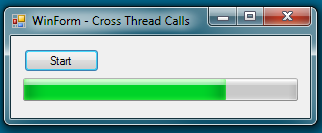
Running our Form and clicking the Start button gives this…

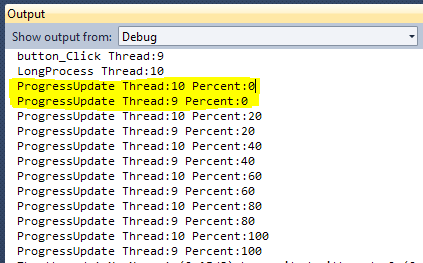
…with the following console output…

Note the area in yellow highlight that shows each update results in the ProgressUpdate1 method being called twice. The first time it is called on thread 10, the worker thread. This causes the BeginInvoke to be called and when the delegate is called be are back on thread 9, the user interface thread.
Although this technique works it has some disadvantages:-
- The Form is passed into the worker
- Which callback method to call is hardcoded
- The callback method is called twice instead of once
- InvokeRequired/BeginInvoke pattern must be used in all callback methods
.NET Framework 2.0
Most of the above problems can be solved by making use of the SynchronizationContext class that was introduced in version 2.0 of the .NET Framework. The SynchronizationContext is a base class that is used to abstract away the details of how to execute code in the correct context, in practice making sure code is executed in the correct thread.
In our case we are interested in the derived class called WinFormsSynchronizationContext. An instance of this context is created the first time any WinForms control is created within a thread and it is assigned to the thread local SynchronizationContext.Current. So although you will not see that class explicitly created if is the one in existence. You can check this yourself by stepping through the new version of the code and examining the type of the SynchronizationContext.Current value.
        private void button2_Click(object sender, EventArgs e)
        {
            Console.WriteLine("button_Click Thread:{0}",
                Thread.CurrentThread.ManagedThreadId);

            ThreadPool.QueueUserWorkItem(new WaitCallback(LongProcess2),
                                         SynchronizationContext.Current);
        }

        private void LongProcess2(object state)
        {
            Console.WriteLine("LongProcess Thread:{0}",
                Thread.CurrentThread.ManagedThreadId);

            SynchronizationContext context = (SynchronizationContext)state;

            for (int i = 0; i < 100; i+=20)
            {
                Thread.Sleep(100);
                context.Post(new SendOrPostCallback(ProgressUpdate2), i);
            }
        }

        private void ProgressUpdate2(object percent)
        {
            Console.WriteLine("ProgressUpdate Thread:{0} Percent:{1}",
                Thread.CurrentThread.ManagedThreadId, percent);

            progressBar1.Value = (int)percent;
        }
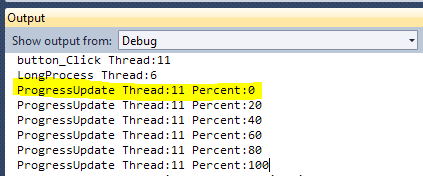
Using the Post method of the context ensures the passed in delegate is executed back on the original WinForms thread. We no longer get two calls to the callback because the callback is only ever called when already back on the correct thread. We can see this is the case in console output.

We still have one of our disadvantages to take care of. The actual callback method is still hardcoded into the worker method. It would be better if the callback were passed into the long running method as a parameter instead of being fixed. This allows the long running code to be reused from multiple points in our WinForms application where each usage needs a different callback used.
Our updated code now looks like the following with a helper class used to pass two pieces of information into the worker method.
        public class ItemContext : Tuple>
        {
            public ItemContext(SynchronizationContext context, Action action)
                : base(context, action)
            { }
        }

        private void button3_Click(object sender, EventArgs e)
        {
            ThreadPool.QueueUserWorkItem(
                new WaitCallback(LongProcess3),
                new ItemContext(SynchronizationContext.Current,
                                new Action((p) => progressBar1.Value = p)));
        }

        private void LongProcess3(object state)
        {
            ItemContext context = (ItemContext)state;

            for (int i = 0; i < 100; i+=20)
            {
                Thread.Sleep(100);
                context.Item2(innerI)), null);
            }
        }
We have achieved our goal of using another thread for executing an operation whilst safely returning to the WinForms thread for processing updates or results from the operation. We have also parameterized the operation with a SynchronizationContext and callback so the operation can be reused.
.NET Framework 4.5
With the introduction of the async and await keywords we can improve our code again. Instead of using the ThreadPool explicitly we can use the static Task.Run method to request an operation be executed asynchronously on another thread. This has the advantage that we can await the operation, so the button4_Click method will continue on the original WinForms thread once the operation has completed.
So performing post-operation code becomes trivial as we just add it immediately after the await. This is easier than passing a callback into the operation. Here is an example of how we could do this without the need for a helper class as seen before.
        private async void button4_Click(object sender, EventArgs e)
        {
            var context = SynchronizationContext.Current;
            await Task.Run(() => LongProcess4(
                               (percent) => context.Post(
                                    new SendOrPostCallback(
                                        (_) => progressBar.Value = percent), null)));

            // Post-Operation code goes here...
        }

        private void LongProcess4(Action progress)
        {
            for (int i = 0; i < 100; i+=20)
            {
                Thread.Sleep(100);
                progress(i);
            }
        }
Our final version of code will use a helper method that makes it simple to solve our original problem, how to execute code on another thread and then get back to the original WinForms thread with feedback.
        private async void button_Click(object sender, EventArgs e)
        {
            await RunWithCallback(LongProcess4,
                                  (percent) => progressBar.Value = percent);
        }

        private Task RunWithCallback(Action action, Action callback)
        {
            var context = SynchronizationContext.Current;
            return Task.Run(() => action(
                                (p) => { context.Post(new SendOrPostCallback(
                                    (_) => callback(p)), null); }));
        }
You can call RunWithCallback with two parameters, a delegate to execute as the operation on the background thread and another delegate which is the callback method to be passed into the operation. With the use of lambdas it makes for very concise code for methods that would have been trivial.


 First Chance Exception