Category Archives: WPF

WinRT vs WPF Drawing Performance

Although WPF/XAML are great for developing user interfaces it does have a reputation for being slow at drawing. Certainly it is recommended you keep the visual tree down to less than 10,000 objects if you want anything like a responsive user experience.

So how does the new WinRT compare to WPF? There is no need to wonder when we can create a couple of simple tests and see how it works in practice. My test consists of a single XAML page that contains a TextBlock and Grid. The TextBlock will be used to indicate how many frames per second are being drawn and the Grid used to host instances of the Rectangle shape class. The WPF version of the XAML is as follows.

    <Window x:Class="WpfApplication1.MainWindow"
            xmlns="http://schemas.microsoft.com/winfx/2006/xaml/presentation"
            xmlns:x="http://schemas.microsoft.com/winfx/2006/xaml"
            Title="MainWindow" Height="350" Width="525">
        <Grid>
            <Grid.RowDefinitions>
                <RowDefinition Height="Auto"/>
                <RowDefinition Height="1*"/>
            </Grid.RowDefinitions>
            <TextBlock x:Name="speed"/>
            <Grid x:Name="g" Grid.Row="1"/>
        </Grid>
    </Window>

The code behind is a little more verbose but simple enough. It creates rows and columns for the Grid and fills each cell with a Rectangle instance. It then kicks off a timer that fires as quickly as possible. The timer tick will update the Brush instances used to color the background and border of each Rectangle. By counting how many times per second the timer ticks we can see the update rate.

    public partial class MainWindow : Window
    {
        public int _count = 0;
        public Random _rand = new Random();
        public DateTime _startTime;
        public DispatcherTimer _timer = new DispatcherTimer();
        public List _shapes = new List();
        public List _brushes = new List();

        public MainWindow()
        {
            InitializeComponent();

            int bounds = 40;
            for (int i = 0; i &lt; bounds; i++)
            {
                g.RowDefinitions.Add(new RowDefinition() 
                    { Height = new GridLength(1, GridUnitType.Star) });

                g.ColumnDefinitions.Add(new ColumnDefinition 
                    { Width = new GridLength(1, GridUnitType.Star) });
            }

            for (int x = 0; x &lt; bounds; x++)
            {
                for (int y = 0; y  1000)
            {
                if (_count &gt; 0)
                    speed.Text = _count.ToString();
                else
                    speed.Text = "0";

                _count = 0;
                _startTime = DateTime.Now;
            }

            int index = _rand.Next(_brushes.Count);
            foreach (Rectangle tb in _shapes)
            {
                tb.Fill = _brushes[index++ % _brushes.Count];
                tb.Stroke = _brushes[index++ % _brushes.Count];
            }

            _count++;
        }
    }

Running on a Windows 7 machine we getting the following output…

WPF Rectangle Drawing

…which averages around the 15 frames per-second. It gives the same frame rate when run maximized or restored. Running the same test as a Metro app at full screen we get the following…

WinRT Rectangle Drawing

…which is 40 frames compared to the 15 for WPF. A nice 260% performance improvement. But applications are made up of more than simple rectangles. So with a minor change we can fill each cell with a TextBlock that has a new Text value set for each timer tick. Running this under WPF we get…

WPF Text Drawing Performance

…around 11 frames per second and the Metro app version comes out at…

WinRT Text Drawing Performance

…around 10 frames on average, the screenshot happened to be taken when it was at 9 but it averaged 10. So it seems that Text drawing performance is about the same and rectangle drawing is significantly faster under WinRT. Obviously this is only a rough and ready comparison but it is very positive to see that even at the Consumer Preview stage the WinRT implementation is at least at good and in many areas better than WPF. You have to assume that it will only get faster in the future as developer time shifts from adding features to improving performance.

WPF: Worker Thread Usage

Most developers assume that WPF is only used for generating the UI of your application. But it also proves a great tool for generating simple reports from worker threads.  The following workflow demonstrates how easy it is…

1. XAML Design
Use your existing tools such as Visual Studio or KAXAML to create your report layout using the usual WPF controls such as Grid, StackPanel, TextBlock and so forth. If your one of the few developers that is familiar with Expression Blend then you should be able to create a nice looking report really quickly. Use data binding to get the actual values that will be needed when the report is generated.

2. Worker Thread
Use a worker thread to load in the XAML and load in the current data values from a database or other source. Set the DataContext at the root of the XAML to the object that provides your report values.

3. Render and Save
Use the RenderTargetBitmap to render the XAML to a bitmap that can then be saved in whatever format you prefer.

4. Prevent Memory Leak
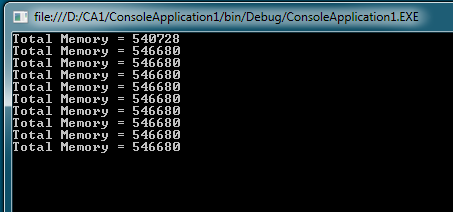
After following the first three steps you will run your reports and notice that you are slowing leaking memory. Here is a minimal console application to demonstrate the leak occurring…

    static void Main(string[] args)
    {
        for (int i = 0; i &lt; 10; i++)
        {
            Thread t = new Thread(() =&gt; ThreadRun());
            t.SetApartmentState(ApartmentState.STA);
            t.Start();
            t.Join();

            Console.WriteLine("Total Memory = {0}", GC.GetTotalMemory(true));
        }

        Console.ReadLine();
    }

    static void ThreadRun()
    {
        Grid g = new Grid();
        TextBlock tb = new TextBlock();
        tb.Text = "Hello World!";
        g.Children.Add(tb);
    }

WPF Worker Thread Leak

WPF makes use of a thread specific Dispatcher instance for event handling. Even though our example has no user interaction and does not even render it still causes a dispatcher instance to be created for the thread. If you create a WPF control then you cause a dispatcher to be created if not already present.

Some WPF controls also use the dispatcher for memory management although that is not the case for the simple example we have with a Grid and TextBlock. Whenever a thread has a dispatcher you must close it down gracefully to prevent a memory leak. Here is the updated code with the dispatcher shutdown code added.

    static void ThreadRun()
    {
        Grid g = new Grid();
        TextBlock tb = new TextBlock();
        tb.Text = "Hello World!";
        g.Children.Add(tb);</code>

        // Allow dispatcher to process any waiting delegates as it shutsdown
        Dispatcher.CurrentDispatcher.BeginInvokeShutdown(DispatcherPriority.SystemIdle);
        Dispatcher.Run();
    }

Now our example runs without leaking, once it has settled down in usage from the first iteration.

WPF Worker Thread Leak Fixed

References
MSDN – Thread
MSDN – Dispatcher

WPF: Exception Handling

I recommend reading the CLR: Exception Handling post before continuing.

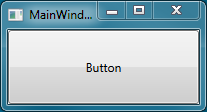
A WPF application provides additional events for processing unhandled exceptions in additional to those already offered by the CLR via the AppDomain. To see this we will create a simple application that adds a Button to the main form and throws an exception when it is pressed. Here is the code added to the to the application code-behind file so we can see which events are fired and in what order.

    public partial class App : Application
    {
        public App()
        {
            AppDomain.CurrentDomain.FirstChanceException +=
                new EventHandler(FirstChance);

            AppDomain.CurrentDomain.UnhandledException +=
                new UnhandledExceptionEventHandler(Unhandled);

            this.DispatcherUnhandledException +=
                new DispatcherUnhandledExceptionEventHandler(AppUnhandled);

            this.Dispatcher.UnhandledException +=
                new DispatcherUnhandledExceptionEventHandler(DispUnhandled);

            this.Dispatcher.UnhandledExceptionFilter +=
                new DispatcherUnhandledExceptionFilterEventHandler(DispFilter);
        }

        static void FirstChance(object sender, FirstChanceExceptionEventArgs e)
        {
            Console.WriteLine("AppDomain.FirstChanceException");
        }

        static void Unhandled(object sender, UnhandledExceptionEventArgs e)
        {
            Console.WriteLine("AppDomain.UnhandledException");
        }

        static void AppUnhandled(object sender, DispatcherUnhandledExceptionEventArgs e)
        {
            Console.WriteLine("Application.UnhandledException");
        }

        static void DispUnhandled(object sender, DispatcherUnhandledExceptionEventArgs e)
        {
            Console.WriteLine("Dispatcher.UnhandledException");
        }

        static void DispFilter(object sender, DispatcherUnhandledExceptionFilterEventArgs e)
        {
            Console.WriteLine("Dispatcher.UnhandledExceptionFilter");
        }
    }

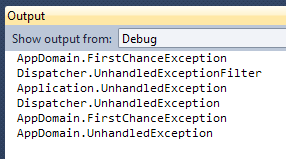
The XAML for adding a Button and the Click event handler that throws an exception is too trivial to bother listing here. When our example is run we get the following.

WPF UnhandledException

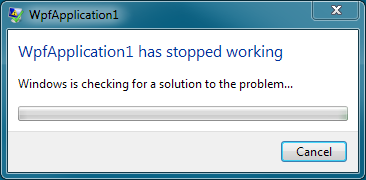
Pressing the button gives the following message.

WPF FirstChanceException

MSDN documentation indicates that the user should be given a dialog box with exception details followed by the application exiting. I have never seen the supposed dialog box appear but as we can see above it certainly does terminate. This is actually the same end result as occurs when using a bare console application but we do get some additional events. The sequence of events generated is as follows.

WPF Exception Handling

Dispatcher Exception Handling
A dispatcher in WPF is responsible for managing a queue of messages for a thread and dispatching them in priority order. Each WPF thread has an associated dispatcher and has two events relating to exception handling.

The first is UnhandledExceptionFilter which has the sole purpose of allowing you to decide if the exception event of the Dispatcher and Application should fire. It does not however prevent the exception from propagating to the default application domain and terminating the application. If you have some standard logic inside the dispatcher/application instances and for some reason you want to avoid it being called you could handle this event.

When the filter does not prevent it the Dispatcher.UnhandledException event is fired. This allows you to handle the event on a per-thread basis as each thread has its own dispatcher instance. An interesting feature of this event is ability to set the exception as handled and so prevent the application from terminating.

Application Exception Handling
The application instance has the DispatcherUnhandledException event which acts as a central point for any such exception occurring no matter which dispatcher it originated from. So if you have multiple threads and each has its own dispatcher you can choose to hook into the application event and know it will fire no matter which thread the exception originated on. It also has an event argument called Handled that can be used to prevent the exception propagating to the app domain and so exiting the program.

Additional Resources
MSDN – Dispatcher.UnhandledEvent
MSDN – Dispatcher.UnhandledEventFilter
MSDN – Application.DispatcherUnhandledEvent