Tag Archives: Threading

WinForms: Cross Thread Calls

.NET Framework 1.0 / 1.1

In the beginning there was only WinForms for developing user interfaces on the desktop. As WinForms is just a wrapper layer on top of Win32 it means your .NET controls have thread affinity just like Win32 controls. So any method or property you call on a control must occur on the same thread that created the control.

Long running tasks are the bane of user interfaces. If you perform them synchronously they freeze the application and make it unresponsive until the task is completed. To avoid this we use worker threads. But with thread affinity we cannot update the user interface from the worker thread when the task has some feedback to show. Fortunately the .NET designers thought of this and provided the Control.InvokeRequired and Control.Invoke methods.

To demonstrate this we have a simple WinForms application. It consists of a Form with a button for starting a long running task and a progress bar for showing the progress of that task as it executes. The button1_Click event handler creates a thread pool work item in order to kick off the LongProcess1 method in a separate worker thread. We simulate a long running operation by placing a Thread.Sleep inside a loop and repeatedly call the ProgressUpdate1 method to update the progress bar with current state of the task.

    private void button1_Click(object sender, EventArgs e)
    {
        Console.WriteLine("button_Click Thread:{0}",
            Thread.CurrentThread.ManagedThreadId);

        ThreadPool.QueueUserWorkItem(new WaitCallback(LongProcess1), this);
    }

    private void LongProcess1(object state)
    {
        Console.WriteLine("LongProcess Thread:{0}",
            Thread.CurrentThread.ManagedThreadId);

        Form1 form = (Form1)state;

        for (int i = 0; i < 100; i+=20)
        {
            Thread.Sleep(100);
            form.ProgressUpdate1(i);
        }
    }

    private void ProgressUpdate1(int percent)
    {
        Console.WriteLine("ProgressUpdate Thread:{0} Percent:{1}",
            Thread.CurrentThread.ManagedThreadId, percent);

        if (progressBar1.InvokeRequired)
            progressBar1.BeginInvoke(new UpdateDelegate(ProgressUpdate1),
                                     new object[] {percent});
        else
            progressBar1.Value = percent;
    }

    private delegate void UpdateDelegate(int percent);

We can see inside the ProgressUpdate1 the use of the InvokeRequired property to discover if the current thread is the same as the thread the control was created on. If it returns True then you need to use either the BeginInvoke or Invoke method to request the provided delegate be executed on the thread that created the associated control.

Internally the BeginInvoke is implemented by posting a custom windows message to a hidden control that exists on the user interface thread. Win32 knows the thread associated with each control and so the message is automatically queued to the message queue of the owning thread. Once the message is dispatched the hidden controls WndProc will process it by calling the provided delegate.

Running our Form and clicking the Start button gives this…
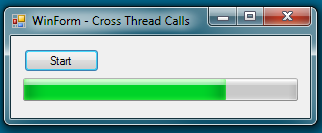
WinForms Cross Thread Calls

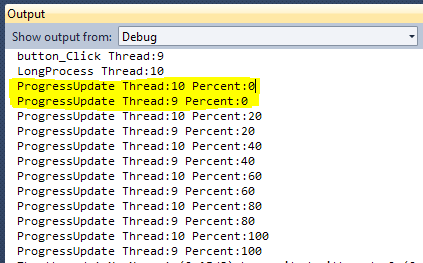
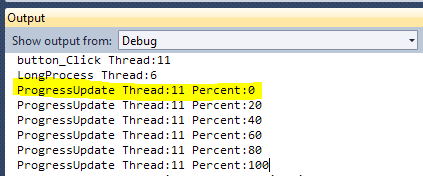
…with the following console output…

WinForms Invoke/InvokeRequired

Note the area in yellow highlight that shows each update results in the ProgressUpdate1 method being called twice. The first time it is called on thread 10, the worker thread. This causes the BeginInvoke to be called and when the delegate is called be are back on thread 9, the user interface thread.

Although this technique works it has some disadvantages:-

  • The Form is passed into the worker
  • Which callback method to call is hardcoded
  • The callback method is called twice instead of once
  • InvokeRequired/BeginInvoke pattern must be used in all callback methods


.NET Framework 2.0

Most of the above problems can be solved by making use of the SynchronizationContext class that was introduced in version 2.0 of the .NET Framework. The SynchronizationContext is a base class that is used to abstract away the details of how to execute code in the correct context, in practice making sure code is executed in the correct thread.

In our case we are interested in the derived class called WinFormsSynchronizationContext. An instance of this context is created the first time any WinForms control is created within a thread and it is assigned to the thread local SynchronizationContext.Current. So although you will not see that class explicitly created if is the one in existence. You can check this yourself by stepping through the new version of the code and examining the type of the SynchronizationContext.Current value.

        private void button2_Click(object sender, EventArgs e)
        {
            Console.WriteLine("button_Click Thread:{0}",
                Thread.CurrentThread.ManagedThreadId);

            ThreadPool.QueueUserWorkItem(new WaitCallback(LongProcess2),
                                         SynchronizationContext.Current);
        }

        private void LongProcess2(object state)
        {
            Console.WriteLine("LongProcess Thread:{0}",
                Thread.CurrentThread.ManagedThreadId);

            SynchronizationContext context = (SynchronizationContext)state;

            for (int i = 0; i < 100; i+=20)
            {
                Thread.Sleep(100);
                context.Post(new SendOrPostCallback(ProgressUpdate2), i);
            }
        }

        private void ProgressUpdate2(object percent)
        {
            Console.WriteLine("ProgressUpdate Thread:{0} Percent:{1}",
                Thread.CurrentThread.ManagedThreadId, percent);

            progressBar1.Value = (int)percent;
        }

Using the Post method of the context ensures the passed in delegate is executed back on the original WinForms thread. We no longer get two calls to the callback because the callback is only ever called when already back on the correct thread. We can see this is the case in console output.
WinForms SynchronizationContext

We still have one of our disadvantages to take care of. The actual callback method is still hardcoded into the worker method. It would be better if the callback were passed into the long running method as a parameter instead of being fixed. This allows the long running code to be reused from multiple points in our WinForms application where each usage needs a different callback used.

Our updated code now looks like the following with a helper class used to pass two pieces of information into the worker method.

        public class ItemContext : Tuple>
        {
            public ItemContext(SynchronizationContext context, Action action)
                : base(context, action)
            { }
        }

        private void button3_Click(object sender, EventArgs e)
        {
            ThreadPool.QueueUserWorkItem(
                new WaitCallback(LongProcess3),
                new ItemContext(SynchronizationContext.Current,
                                new Action((p) => progressBar1.Value = p)));
        }

        private void LongProcess3(object state)
        {
            ItemContext context = (ItemContext)state;

            for (int i = 0; i < 100; i+=20)
            {
                Thread.Sleep(100);
                context.Item2(innerI)), null);
            }
        }

We have achieved our goal of using another thread for executing an operation whilst safely returning to the WinForms thread for processing updates or results from the operation. We have also parameterized the operation with a SynchronizationContext and callback so the operation can be reused.

.NET Framework 4.5

With the introduction of the async and await keywords we can improve our code again. Instead of using the ThreadPool explicitly we can use the static Task.Run method to request an operation be executed asynchronously on another thread. This has the advantage that we can await the operation,  so the button4_Click method will continue on the original WinForms thread once the operation has completed.

So performing post-operation code becomes trivial as we just add it immediately after the await. This is easier than passing a callback into the operation. Here is an example of how we could do this without the need for a helper class as seen before.

        private async void button4_Click(object sender, EventArgs e)
        {
            var context = SynchronizationContext.Current;
            await Task.Run(() => LongProcess4(
                               (percent) => context.Post(
                                    new SendOrPostCallback(
                                        (_) => progressBar.Value = percent), null)));

            // Post-Operation code goes here...
        }

        private void LongProcess4(Action progress)
        {
            for (int i = 0; i < 100; i+=20)
            {
                Thread.Sleep(100);
                progress(i);
            }
        }

Our final version of code will use a helper method that makes it simple to solve our original problem, how to execute code on another thread and then get back to the original WinForms thread with feedback.

        private async void button_Click(object sender, EventArgs e)
        {
            await RunWithCallback(LongProcess4,
                                  (percent) => progressBar.Value = percent);
        }

        private Task RunWithCallback(Action action, Action callback)
        {
            var context = SynchronizationContext.Current;
            return Task.Run(() => action(
                                (p) => { context.Post(new SendOrPostCallback(
                                    (_) => callback(p)), null); }));
        }

You can call RunWithCallback with two parameters, a delegate to execute as the operation on the background thread and another delegate which is the callback method to be passed into the operation. With the use of lambdas it makes for very concise code for methods that would have been trivial.

WPF: Worker Thread Usage

Most developers assume that WPF is only used for generating the UI of your application. But it also proves a great tool for generating simple reports from worker threads.  The following workflow demonstrates how easy it is…

1. XAML Design
Use your existing tools such as Visual Studio or KAXAML to create your report layout using the usual WPF controls such as Grid, StackPanel, TextBlock and so forth. If your one of the few developers that is familiar with Expression Blend then you should be able to create a nice looking report really quickly. Use data binding to get the actual values that will be needed when the report is generated.

2. Worker Thread
Use a worker thread to load in the XAML and load in the current data values from a database or other source. Set the DataContext at the root of the XAML to the object that provides your report values.

3. Render and Save
Use the RenderTargetBitmap to render the XAML to a bitmap that can then be saved in whatever format you prefer.

4. Prevent Memory Leak
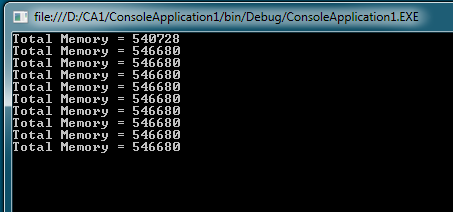
After following the first three steps you will run your reports and notice that you are slowing leaking memory. Here is a minimal console application to demonstrate the leak occurring…

    static void Main(string[] args)
    {
        for (int i = 0; i &lt; 10; i++)
        {
            Thread t = new Thread(() =&gt; ThreadRun());
            t.SetApartmentState(ApartmentState.STA);
            t.Start();
            t.Join();

            Console.WriteLine("Total Memory = {0}", GC.GetTotalMemory(true));
        }

        Console.ReadLine();
    }

    static void ThreadRun()
    {
        Grid g = new Grid();
        TextBlock tb = new TextBlock();
        tb.Text = "Hello World!";
        g.Children.Add(tb);
    }

WPF Worker Thread Leak

WPF makes use of a thread specific Dispatcher instance for event handling. Even though our example has no user interaction and does not even render it still causes a dispatcher instance to be created for the thread. If you create a WPF control then you cause a dispatcher to be created if not already present.

Some WPF controls also use the dispatcher for memory management although that is not the case for the simple example we have with a Grid and TextBlock. Whenever a thread has a dispatcher you must close it down gracefully to prevent a memory leak. Here is the updated code with the dispatcher shutdown code added.

    static void ThreadRun()
    {
        Grid g = new Grid();
        TextBlock tb = new TextBlock();
        tb.Text = "Hello World!";
        g.Children.Add(tb);</code>

        // Allow dispatcher to process any waiting delegates as it shutsdown
        Dispatcher.CurrentDispatcher.BeginInvokeShutdown(DispatcherPriority.SystemIdle);
        Dispatcher.Run();
    }

Now our example runs without leaking, once it has settled down in usage from the first iteration.

WPF Worker Thread Leak Fixed

References
MSDN – Thread
MSDN – Dispatcher

CLR: Exception Handling

FirstChanceException
Introduced in .NET 4, this notification is fired by an application domain whenever any exception is thrown. Note that this notification does not allow you to alter the exception details or allow it to be marked as handled. After your event handler is processed the exception handled by the CLR in the usual way. But this is a great event for logging all exceptions that occur in your application. Given the copious amounts of output it will produce I would recommend you have a way to turn it on and off as needed.

UnhandledException
This event is fired by the application domain when an exception has been thrown but not caught. When this occurs on your default domain, the once created to host your application, it will terminate immediately afterwards. This is the place to log the exception, provide feedback to the user and then perform necessary cleanup, such as flushing file buffers. All your applications should hook this event and at a minimum log the exception. The next time a user complains your program crashed you can then at least find out the cause of the exception.

Here is a trivial example showing how to hook the events.

class Program
{
    static void Main()
    {
        AppDomain.CurrentDomain.FirstChanceException +=
            new EventHandler(FirstChance);

        AppDomain.CurrentDomain.UnhandledException +=
            new UnhandledExceptionEventHandler(Unhandled);

        throw new ApplicationException("Main Thrown Exception");
    }

    static void FirstChance(object sender, FirstChanceExceptionEventArgs e)
    {
        Console.WriteLine("FirstChanceException Handler");
    }

    static void Unhandled(object sender, UnhandledExceptionEventArgs e)
    {
        Console.WriteLine("UnhandledException Handler");
    }
}

And the console output with the interesting parts in yellow.

AppDomain Exception Handling


Nested Application Domains

The majority of applications have a single application domain that is automatically created at start-up and hosts your assembly. If you have additional domains then the firing of events becomes a little more complicated, but not by much. To see how this works we will create an example where the default domain creates a nested domain called Nested1 which itself has another nested domain called Nested2.

public class Program
{
    static void Main()
    {
        Program.HookFirstChanceException();
        Test t = Program.CreateTestInsideAppDomain("Nested1");
        t.SetupNested1();
        t.ThrowException();
    }

    public static Test CreateTestInsideAppDomain(string appDomainName)
    {
        AppDomain nested = AppDomain.CreateDomain(appDomainName);
        string executingName = Assembly.GetExecutingAssembly().FullName;
        return (Test)nested.CreateInstanceAndUnwrap(executingName, "Test");
    }

    public static void HookFirstChanceException()
    {
        AppDomain.CurrentDomain.FirstChanceException +=
            new EventHandler(FirstChance);
    }

    public static void FirstChance(object sender, FirstChanceExceptionEventArgs e)
    {
        Console.WriteLine("Domain:{0} FirstChanceException Handler",
                          AppDomain.CurrentDomain.FriendlyName);
    }
}

public class Test : MarshalByRefObject
{
    private Test t;

    public void SetupNested1()
    {
        Program.HookFirstChanceException();
        t = Program.CreateTestInsideAppDomain("Nested2");
        t.SetupNested2();
    }

    public void SetupNested2()
    {
        Program.HookFirstChanceException();
    }

    public void ThrowException()
    {
        if (t != null)
            t.ThrowException();
        else
            throw new ApplicationException("Raise Exception");
    }
}

Nested FirstChanceException
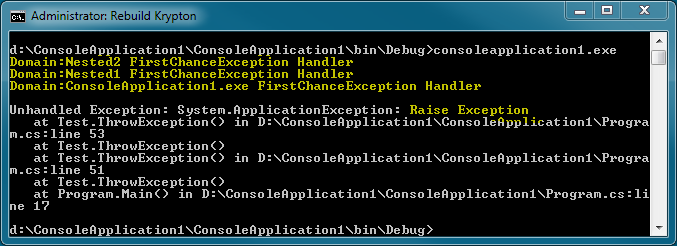
All three domains hook into the same FirstChanceException event handler and output to the console. The code is a little more complicated than our first example but this is just the extra fluff needed to create objects inside nested AppDomain instances. Line 8 causes the Test instance inside the Nested2 domain to throw an exception and gives the following output.

Nested FirstChanceException

When the exception is thrown inside Nested2 the FirstChanceException event is fired for the Nested2 domain. Because the exception is not caught the stack is unwound one level which leaves us inside the Nested1 domain. As this is a different domain the FirstChanceException event is fired for the newly encountered domain. Again the exception is not caught so we move up another stack level and reach the Main code itself. Here the default application domain fires the FirstChanceException event because this is again a different application domain to the last one encountered.

I think this is the action you would intuitively expect to occur. The FirstChanceException event is fired each time the stack unwind encounters a different domain to the last time. As soon as any handler is found the unwinding stops and so domains higher up the stack will not be encountered and so not fire the event.

Nested UnhandledException
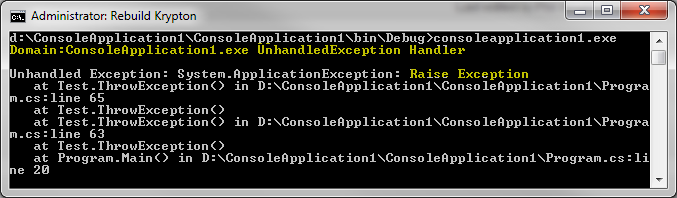
Modifying the above code to hook the UnhandledException event gives the following.

Nested UnhandledException

Here the UnhandledException event is fired just the once. This indicates that no method on the stack within any domain handled the exception.


Multi-Threaded Scenarios

Most applications make use multiple threads to take advantage of multi-core processors. Often you might not even realise it. The CLR garbage collector runs on a separate thread, WPF applications have a separate render thread, calling BeginInvoke on a Delegate uses a ThreadPool Thread for executing the method asynchronously.

Our new test is little more complicated, it throws an exception from a separate thread whilst nesting calls inside different application domains. This scenario is more complicated than the majority of real world applications but as multi-threaded programming becomes more common it is important to understand it.

public class Program
{
    static void Main()
    {
        Program.HookAppDomainExceptions();
        Test t = Program.CreateTestInsideAppDomain("Nested1");
        t.SetupNested1();
    }

    public static Test CreateTestInsideAppDomain(string appDomainName)
    {
        AppDomain nested1 = AppDomain.CreateDomain(appDomainName);
        string executingName = Assembly.GetExecutingAssembly().FullName;
        return (Test)nested1.CreateInstanceAndUnwrap(executingName, "Test");
    }

    public static void HookAppDomainExceptions()
    {
        AppDomain.CurrentDomain.FirstChanceException +=
            new EventHandler(FirstChance);

        AppDomain.CurrentDomain.UnhandledException +=
            new UnhandledExceptionEventHandler(Unhandled);
    }

    public static void FirstChance(object sender, FirstChanceExceptionEventArgs e)
    {
        Console.WriteLine("Domain:{0} FirstChanceException Handler",
                          AppDomain.CurrentDomain.FriendlyName);
    }

    public static void Unhandled(object sender, UnhandledExceptionEventArgs e)
    {
        Console.WriteLine("Domain:{0} UnhandledException Handler",
                          AppDomain.CurrentDomain.FriendlyName);
    }
}

public class Test : MarshalByRefObject
{
    private delegate void Nothing();

    public void SetupNested1()
    {
        Program.HookAppDomainExceptions();
        Test t = Program.CreateTestInsideAppDomain("Nested2");
        t.SetupNested2();
    }

    public void SetupNested2()
    {
        Program.HookAppDomainExceptions();
        var thread = new Thread(new ThreadStart(ThreadMain));
        thread.Start();
    }

    static void ThreadMain()
    {
        Test t = Program.CreateTestInsideAppDomain("Nested3");
        t.SetupNested3();
    }

    public void SetupNested3()
    {
        Program.HookAppDomainExceptions();
        Test t = Program.CreateTestInsideAppDomain("Nested4");
        t.ThrowException();
    }

    public void ThrowException()
    {
        Program.HookAppDomainExceptions();
        throw new ApplicationException("Raise Exception");
    }
}

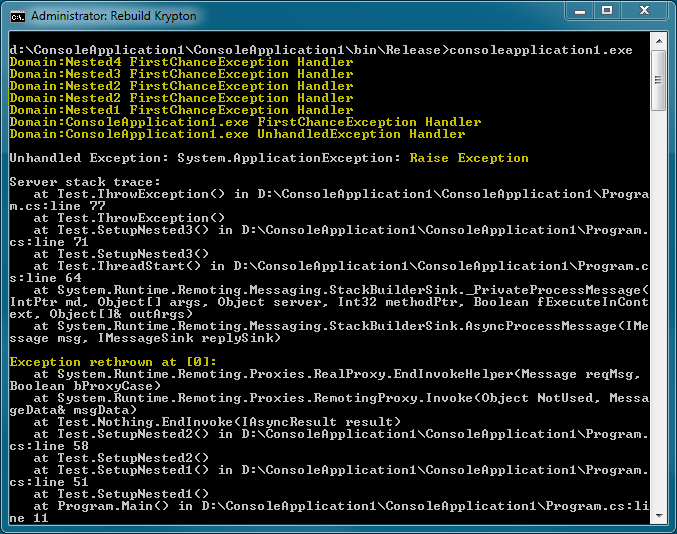
And the console output with the interesting parts in yellow.

Multi-Threaded Exceptions


Multi-Threaded FirstChanceException

If you look at the output we can see that the FirstChanceException is thrown for each of the nested domains up to and including Nested2. As this is the domain that creates the separate thread this makes sense. You cannot unwind the stack any further than the start of the thread and the thread was created inside Nested2. This is simple and consistent with the previous examples.

Multi-Threaded UnhandledException
We actually have the UnhandledException fired twice. Once for the domain that contains the terminating thread and then for the default domain. It we had not created any extra domains then only the default domain would have fired. It is only because the extra thread terminated inside a different domain that it fired the UnhandledException event for Nested2.

Asynchronous Delegates
Using BeginInvoke on a delegate allows the delegate to be executed in a separate thread so that your main thread can continue. The CLR implements this by using a Thread from the ThreadPool. We can test this alternate way of generating another thread by replacing the SetupNested2 method with the following code.

    public void SetupNested2()
    {
        Program.HookAppDomainExceptions();
        var start = new Nothing(ThreadStart);
        start.EndInvoke(start.BeginInvoke(null, null));
    }

Note that you have to call EndInvoke to match the original BeginInvoke. There are different ways of synchronising, such as using a wait event or a callback that is fired on completion. But they all produce the same result which can be seen here with the interesting bits highlighted in yellow.

Delegate.BeginInvoke Exceptions

Notice that the FirstChanceException event is fired twice for the Nested2 domain. We can see why by looking at the yellow highlight towards the bottom of the output. The original exception has been rethrown by the EndInvoke. Effectively what we have here is an attempt by the EndInvoke to make the exception look as if it occurred in the original thread and not in the actual ThreadPool Thread.

The rethrow causes that duplicate FirstChanceException event for the Nested2 domain. As the rethrow is now unwinding the original thread, it fires the FirstChanceException for the rest of the domains up to and including the default domain. It also fires the UnhandledException just the once for the default domain. The ThreadPool Thread handled the original exception so that it could be rethrown by EndInvoke and so there is no UnhandledException event for the Nested2 domain, which we encountered in the last test.

You should now be confident handling exceptions in:-

  • Single and multi-threaded applications
  • Single and multi-application domain scenarios
  • Using managed threads directly and via BeginInvoke

Additional Resources

MSDN – AppDomain.FirstChanceException
MSDN – AppDomain.UnhandledException
MSDN – Exceptions in Managed Threads